Change the color of something in a photo
January 1st, 2008
Overview
Have you ever wanted to change the color of something in a photo but didn’t know how? Read this tutorial to find out how!
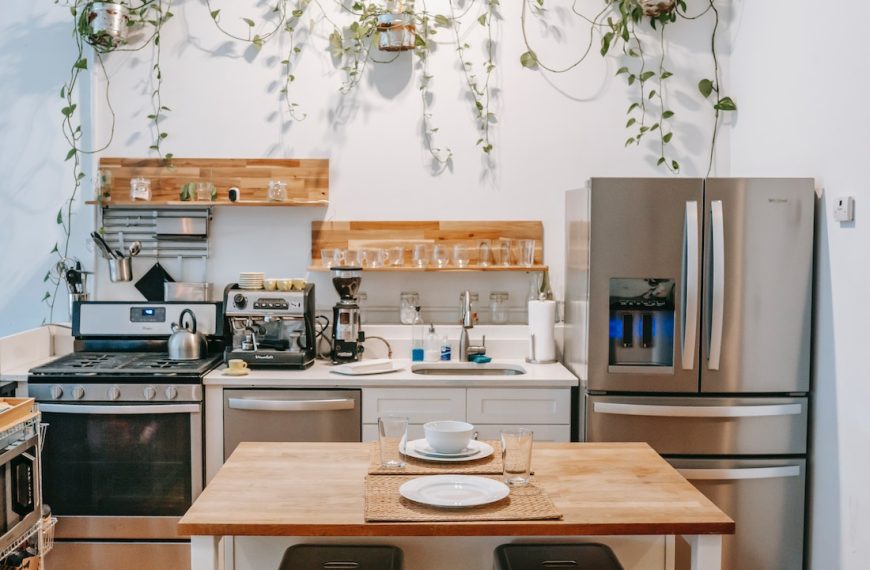
Starting Image

Step 1
Open your photo in Photoshop and select the Quick Selection Tool (W) set the diameter to a reasonable size, something like 10-20 pixels, with a hardness of 100% (You can play around with these settings to fit your needs)

Step 2
With the Quick Selection Tool selected start painting your desired selected areas.
This can be a pretty tedious process depending on the area of the selection you want. If what you want to select is a very large thing with hardly any funny edges make your brush size relatively big so it’s much quicker.
Tip: When painting around the edges and you go over into an area where you don’t want it to select hold down Option and paint over the area you do not want.
Another Tip: If you need to get into a small area a quick easy way to change your brush size is to tap the Left Bracket Key ([). Likewise… if you wanted to make it bigger just tap the Right Bracket Key (])
If you cannot get it to select what you want hit Q and select the brush tool and make your foreground color black and start painting away at the areas you want selected. The places you paint should turn a semi opaque red. When you are done selecting just tap Q again and your area should be selected!

Step 3
Duplicate your selection (Command+J); Click the New Adjustment Layer icon (Bottom of the layers palette) and select the Hue/Saturation.
Check the Colorize check box and play around with the sliders until you get something you like!

Conclusion
There you have it! A very quick and easy way to take an object in a picture, select it and change its color!

3 Responses to “Change the color of something in a photo”
[...] of things! I wrote a tutorial on one of my blogs and in the tutorial i use it. heres the tut DesignSolid – Change the color of something in a photo If you would like to write a tutorial be my guest __________________ Get a free membership! [...]
dude this isn’t all that great… come on…. moreover you dont always get the right tinge you want


Little edits can make big changes!